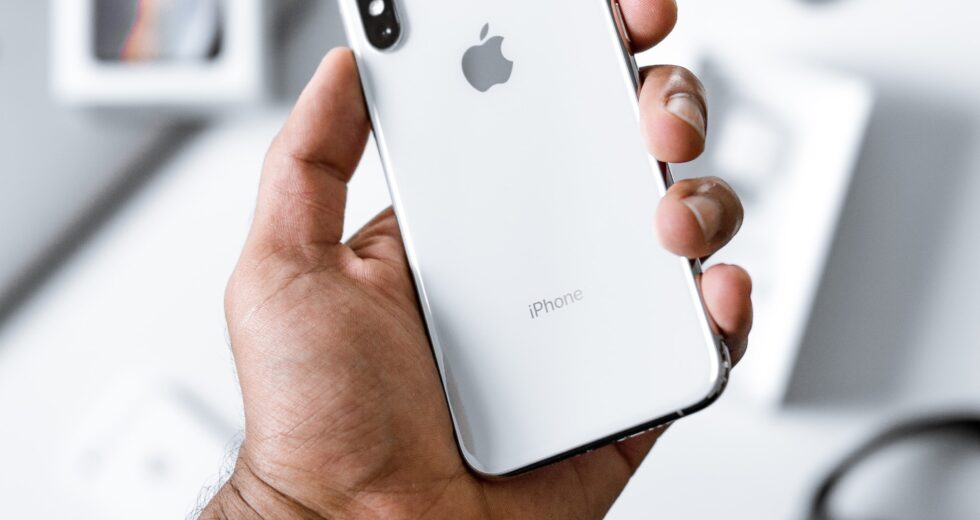
Although we all use smartphones, the harsh truth is that many of us are far from understanding how they work. This can be especially available when someone makes the shift from an Android device to an iPhone, as Apple’s products are considered a bit more complicated. That might be just a subjective feeling; after all, who knows?
Here’s a very objective reality: the ‘user busy’ issue that kicks in on iPhones has caused many users uncertainty and worries. First and foremost, we need to understand why iPhones display such a message in the first place. Only then we will have to see how we can fix the problem.
Why do ‘User Busy’ notifications appear on iPhones?
If a ‘User Busy’ notification appears on your iPhone, there could be several scenarios to blame:
- Trying to reach a number that is no longer available, such as dialing the wrong number.
- The person you’re trying to reach is already on another call.
- The person you’re trying to reach has their iPhone in an area that lacks cellular coverage.
- The phone network might be having some issues. In this case, the ‘user busy’ notification can kick in even if the person you’re trying to call is available.
Quite spooky, right? Well, the next step is obviously to try to get rid of such notifications, and surely it can be a lot easier than it sounds.
How to fix the ‘User Busy’ issue on iPhones?
There are several possible fixes for your iPhone displaying the ‘user busy’ notification. Feel free to try each one at a time and see if the problem has gone away or not:
Change the SIM card
Your SIM card might be having some problems if the ‘user busy’ notification appears when you try to reach someone by call. Therefore, it’s reasonable to change that SIM card and check if the problem persists.
Check the call-blocking
If the person you’re trying to reach has been blocked by you by mistake, or you have forgotten that you’ve initiated such an action in the meantime, don’t be surprised if you can’t get rid of the ‘User Busy’ issue. Therefore, feel free to head over to the Phone app, then select Contacts, and ultimately check the blocked contacts in the Blocked section. Unblock the person you’re trying to reach, if you see it as a blocked contact.
Check the contact information
The person you’re trying to reach through a call needs to have the correct contact information. Otherwise, you may have to deal with the pesky aforementioned message. Therefore, feel free to double-check the contact information of the person you want to contact.
Check the “DND” settings
If the person’s phone has activated the “DND/Do Not Disturb” message, don’t be surprised if the ‘User Busy’ message appears. Therefore, he or she needs to disable the feature to keep receiving calls from you.
Reset the network settings
You can also try to reset the network settings to get rid of the “User Busy” notification. To do so, you need to head over to Settings > General > Reset > Reset Network Settings.
Get yourself a new phone number
Perhaps nobody likes to change their phone number these days, especially because there are so many options out there when we don’t need to deal with someone who has the number itself, but it can sometimes turn out to be a good solution. As a last resort, you can consider asking your phone service provider for a new number.
What’s for sure is that it’s not impossible to get rid of the ‘User Busy’ issue if you invest enough patience and knowledge. Good luck!


